What You Will Do:

- Watch the Khan Academy video: "Confidence Intervals and Margin of Error."
- Collect a sample of 30 room-temperature readings (15 seconds at one reading every 0.5 seconds) in the Desmos Graphing Calculator.
- Use Desmos to find the sample mean and sample standard deviation, then build a 95% confidence interval for the true mean temperature of your room:
- Draw your confidence interval on the graph as two horizontal lines and a shaded "confidence band," then check whether new readings land inside or outside the band.
- Complete the Google Docs worksheet: "Confidence Intervals" and turn it in according to your teacher's directions.
$$
\bar{x} \pm z^{*}\left(\frac{s}{\sqrt{n}}\right), \qquad z^{*} = 1.96
$$
- Population Mean \(\mu\): the true average temperature of the room, which we can never measure exactly.
- Sample: a smaller set of measurements used to estimate the population. Your sample is 30 consecutive sensor readings \((n = 30)\).
- Sample Mean \(\bar{x}\): the average of the readings in your sample.
- Sample Standard Deviation \(s\): how far the readings typically are from the sample mean.
- Standard Error \(\left(SE = \frac{s}{\sqrt{n}}\right)\): how much the sample mean would typically change from one sample to the next.
- Critical Value \(z^{*}\): how many standard errors the interval reaches above and below the sample mean. It comes from the normal distribution: 95% of the area under a normal curve lies within 1.96 standard deviations of its center, so for 95% confidence \(z^{*} = 1.96\). A higher confidence level needs a larger \(z^{*}\) (90% uses 1.645; 99% uses 2.576), which makes the interval wider.
- Margin of Error \((MoE = z^{*} \times SE)\): how far above and below the sample mean the interval reaches.
- Confidence Interval: the range from \(\bar{x} - MoE\) to \(\bar{x} + MoE\). If we repeated the sampling many times, about 95% of the intervals made this way would contain the true mean.
- Click the Khan Academy video on confidence intervals to learn more about these concepts.
- Click this link Temperature - Activity 5 to open the worksheet in a new browser tab. Click 'Make a copy' to save your version to your Google Drive.
Directions:
Data Collection:
- Use the USB-C cable to plug the Observe temperature sensor into your computer's USB port. Use the Google Chrome browser.
- Click the Connect button at the top-left corner of this page.
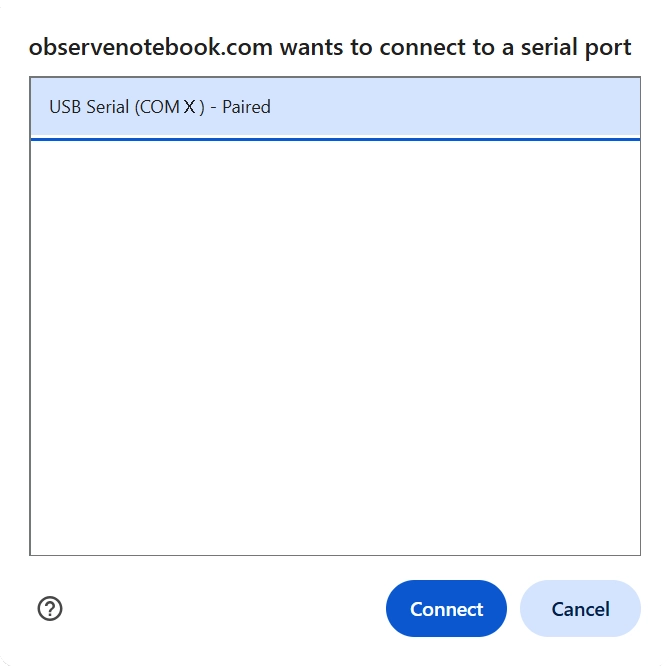
- Select the USB serial port (COM X) and click Connect. X varies by computer and is not important.
- Confirm that the status in the top-right corner says "ready (2 Hz)". The sensor takes one reading every 0.5 seconds, so 30 readings take exactly 15 seconds.
- Set the sensor completely still on your desk or table and do not touch the metal part. Wait about one minute so its temperature settles to the room's temperature. Notice that the temperature is displayed and a live red point appears on the y-axis of the graph.
- Click the Start Collection button and collect at least 30 seconds of data (60 readings). Keep your hands, breath, and papers away from the sensor while it collects. The first 30 readings (t = 0 to 14.5 s) will be your sample. The readings after that (t = 15 s and later) are the new "live" readings you will test against your confidence interval.
- Click Stop Collection to end.
- Optionally, click the small gray triangle to the left of the data table to view the time (t) and temperature (T) columns and data.
- Clear Graph resets the data; Zoom to Data fits all collected data within the viewing window; Capture Graph copies the graph; Export / Import saves or opens a CSV data file.
- After you finish collecting your data, click the Show Instruction button in the upper-right corner to continue the activity.
- Click the Show Directions in the upper-right corner to learn how to collect temperature data for this activity.
- When you finish collecting data, click the Zoom to Data button.
- Make your sample list. Click on the line below the data table and type L = T[1...30] (three periods between 1 and 30). This makes a new list, L, that holds only the first 30 temperature readings. Desmos counts list items starting at 1.
- Sample size. On the next line, type n = length(L). Desmos should show n = 30. If it does not, you did not collect enough data; clear the graph and collect again.
- Sample mean. Type m = mean(L). This is \(\bar{x}\). Record it in your worksheet.
- Sample standard deviation. Type s = stdev(L). Record it in your worksheet. (Desmos's stdev is the sample standard deviation, which divides by n − 1.)
- Standard error. Type E = s/sqrt(n). Typing "sqrt" makes a square root symbol, and typing "/" makes a fraction. Use the arrow keys to move out of the fraction or square root.
- Margin of error. Type M = 1.96E. Desmos multiplies 1.96 by E.
- Lower and upper bounds. Type a = m - M and, on the next line, b = m + M. These are the ends of your 95% confidence interval. Complete the calculations in Part 2 of your worksheet by hand, then check that your answers match a and b.
- Draw the lines. In Desmos, an equation of the form y = (a number) draws a horizontal line. Type y = a and, on the next line, y = b. Two horizontal lines appear across your data. Optionally, type y = m to draw the sample mean between them.
- Style the lines. Click and hold the colored circle to the left of y = a to change its color and choose a dashed line. Do the same for y = b so both bounds match.
- Shade the confidence band. Type a <= y <= b. Typing "<=" makes the ≤ symbol. Desmos shades the region between the two lines. This shaded strip is your "confidence band."
- Mark where your sample ends. An equation of the form x = (a number) draws a vertical line. Type x = 14.75. Readings to the left of this line are your sample; readings to the right are new readings that were not used to build the interval.
- Hit or miss. Use the "+" zoom button and drag the graph so you can see the area just to the right of the vertical line clearly. Look at the next 10 readings (t = 15.0 s to 19.5 s). Count how many are inside the band and how many are outside, and record the counts in Part 3 of your worksheet.
- Check your count with Desmos. Type V = T[31...40] to make a list of the next 10 readings. Then type length(V[a < V < b]). Desmos keeps only the readings between a and b and counts them. Does it match your count?
- When finished, click Capture Graph to copy your graph and paste it into your Google Docs worksheet.
- Watch a disturbance live. If you want to keep your first data set, click Export Data now. Then click Clear Graph. Your Desmos expressions stay in the list and will update automatically from the new data.
- Let the sensor sit still, then click Start Collection. Do not touch the sensor for the first 15 seconds. When t reaches 15 s, the confidence band appears, built from the new first 30 readings.
- Now gently hold the tip of the sensor between your fingers. Watch where the new live points land compared with your confidence band. After about 30 more seconds, click Stop Collection, click Zoom to Data, and click Capture Graph. Paste the graph into your worksheet and use it to answer the Environmental Disturbance question.
- Explore sample size. Click Clear Graph, let the sensor settle, and collect at least 60 seconds of data without touching the sensor. Click on your first expression and change it to L = T[1...120]. Desmos should now show n = 120.
- Find the width of each interval by typing w = b - a. Record the width for n = 30 (change L back to T[1...30]) and for n = 120 in your worksheet. Compare the two widths with the standard error formula.
- Answer all of the questions in your Google Docs worksheet and follow your teacher's directions for turning in your worksheet.