Directions:
Data Collection:
- Use a USB-C cable to plug an Observe sensor into your computer's USB port.
- Click Connect Sensor to connect the first sensor.
- To add a second sensor, plug it into a different USB port. Then click Connect Sensor again and select the second sensor's COM port.
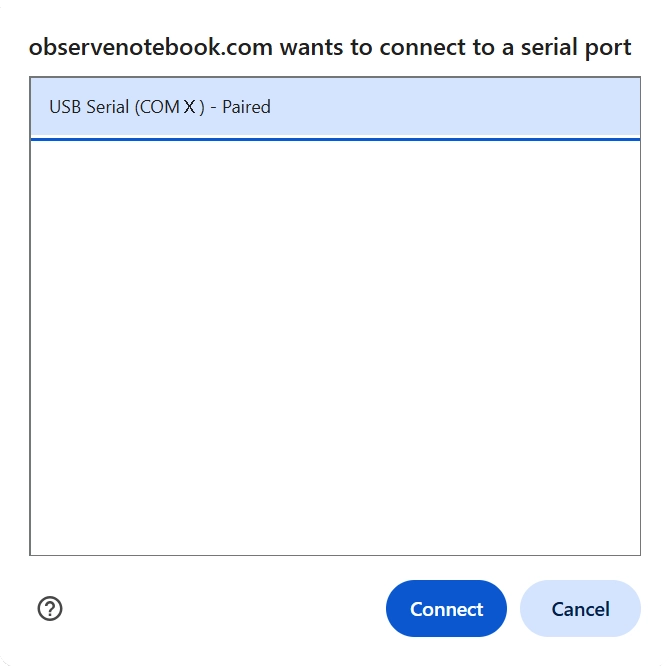
- In the connection window, select the USB serial port (COM X). The value of X varies by computer and is not important. Click the blue Connect button. The status will change to ready.
- Adjust the Sample Rate if desired.
- Optionally enter a duration (in seconds). If set to "None," use the Start/Stop Collection button.
- Click Start Collection to begin logging data. Click Stop Collection to finish.
- Alternatively, add measurements one at a time by pressing Add Point. You will be prompted for an x-value for each measurement. Once Add Point is used, time-based collection is disabled until the page is refreshed.
- Clear Graph resets the graph; Capture Graph copies an image of the graph to the clipboard; Export/Import saves or opens a CSV data file.
- Click the small gray triangle to the left of the data table to view time (t) or event values along with the sensor data (y₁ and y₂). The y₂ column appears only when a second sensor is connected.
- Click the Show Instruction button in the upper-right corner to continue.
- Click the Show Directions button in the upper-right corner to learn how to connect one or two Observe EDUCATION sensors and begin collecting data.