What You Will Do:
Analyzing Your Data:
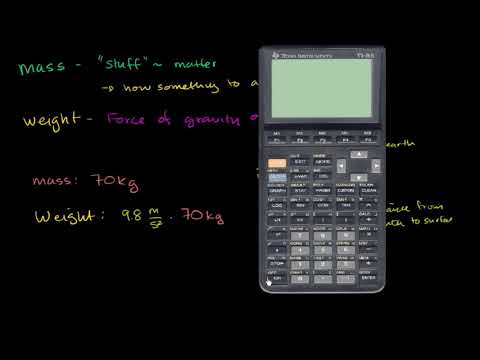
- Watch the Khan Academy video “Mass and Weight” to learn about the difference between an object's mass and its weight.
- Use the Observe Force Sensor to collect force data in the Desmos Graphing Calculator as you hang different masses on the sensor's hook.
- Adjust a slider in the Desmos window to model a linear equation relating the sensor’s force reading to the mass on the hook.
- Mass: the amount of matter in an object. Mass stays the same wherever you are.
- Weight: the force of gravity pulling on an object's mass. Weight can change with gravitational field strength.
- Gravitational field strength (g): the amount of gravitational force acting on each kilogram of mass.
- Click to watch this Khan Academy video to learn more about these concepts.
- Click this link Weight and Mass Worksheet to open the worksheet. If your class uses Google Classroom, open the worksheet from your assignment. If not, click the link above, choose Make a copy, complete your work, and turn it in the usual way.
- Click the Show Directions button in the upper-right corner to learn how to collect data for this activity.
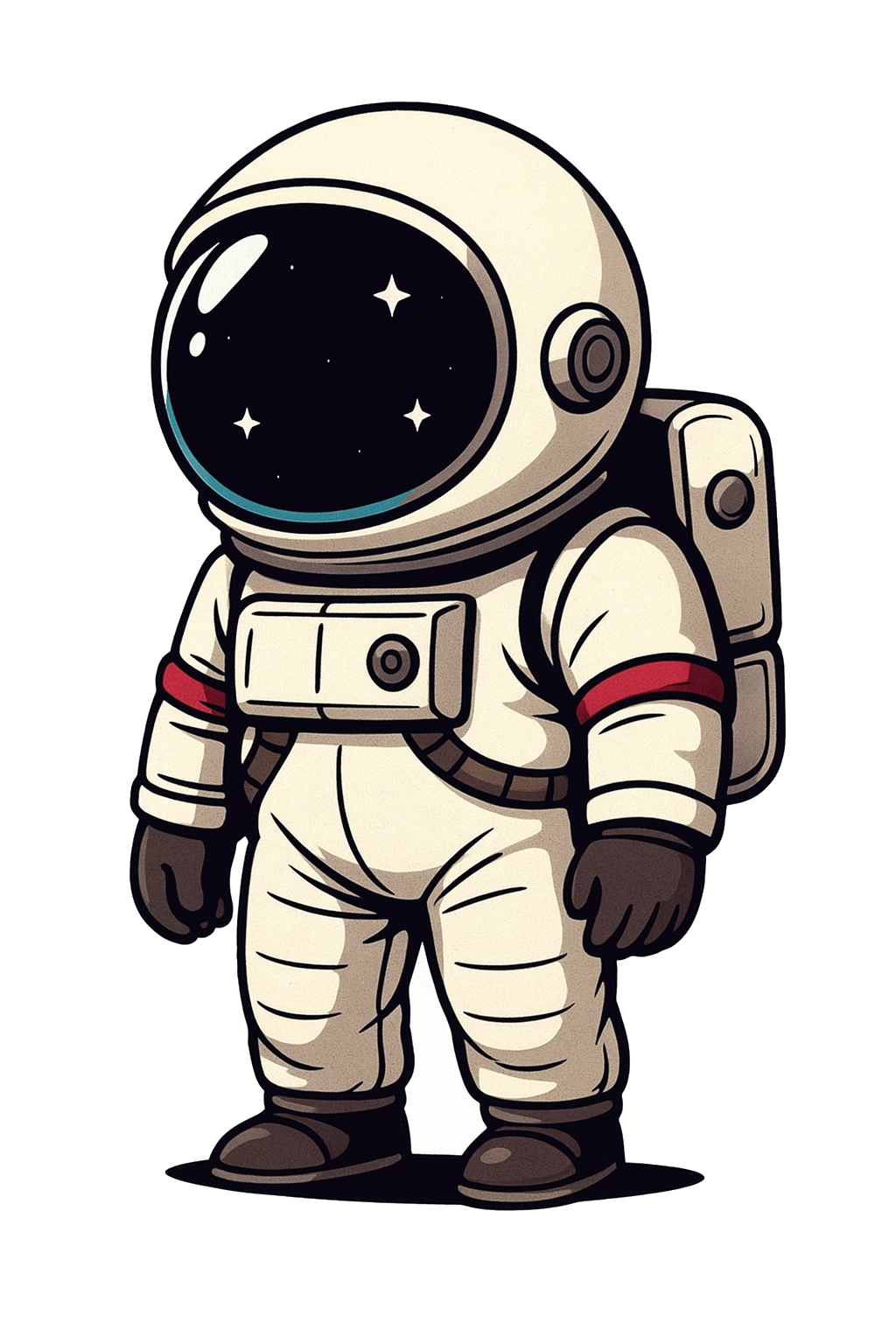
- Use the pull-down menu below to send the astronaut to each planet. Record the astronaut’s weight (w) for each planet in the table of the bar graph. Notice that moving is easy on some planets and much harder on others. The astronaut’s mass stays the same, but his weight changes. Why does this happen?
Weight: 170.0 lb
- When you are satisfied, click Capture Graph to copy the image to the clipboard and paste it into your worksheet for this activity.
Directions:
Data Collection:
- Use a USB-C cable to plug the Observe force sensor into your computer's USB port.
- Click the Connect Sensor button to activate the sensor.
- Select the USB serial port (COM X). The X value varies by computer and is not important. Then click the blue Connect button in the pop-up window. The status will change to ready.
- Hold the sensor with the hook pointing straight down, then press the Calibrate button. Repeat a few times until the force reading is close to zero.
- To collect your data, click the Add Point button. When pressed, you will be prompted for the x-value (mass) for the corresponding y-value (force). Your first point should be 0 grams. Next, hang a 100-gram mass and add another point, entering the actual mass on the hook. Continue hanging additional mass in 100-gram increments and adding points until you reach 1000 grams. Note: any combination of masses is sufficient, provided you enter the actual mass hanging on the hook and record at least five points.
- Clear Graph resets the graph; Capture Graph copies an image of the graph to your clipboard; Export/Import saves or opens a CSV data file.
- Click the small gray triangle to the left of the data table to view the sensor data in the table.
- Click the Show Instructions button in the upper-right corner to continue with analysis of the data.
- As mass is added to the hook, the force measured by the sensor increases. Adjust the slope (g) slider of the linear model y = gx so that the line closely fits your data points. Because no mass produces no force, the y-intercept should be zero.
- The slope of the model, g, represents the gravitational field strength, which determines the force due to gravity. This value changes slightly depending on location on Earth and, as you discovered in the previous simulation, is different on other planets.
- Try using this Desmos gravitational field strength graph to explore how the field strength varies with height above the Earth's surface. What would you weigh at the top of Mt. Everest?