- Click the Show Directions button and read this entire page and understand each step before using your RocketBoard.
- Build your rocket and insert your RocketBoard into the payload bay and launch.
- Download the position, velocity, and acceleration flight log into Desmos Graphing Calculator.
- Analyze key metrics such as apogee, maximum velocity, motor impulse, and terminal velocity in the Google Docs RocketBoard analysis worksheets.
Getting Ready:
Downloading Data Log:
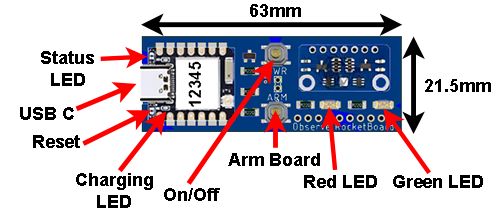
- The RocketBoard controls:
- Plug your board into a USB C charger and charge completely until the red charging LED stops blinking. When fully charged, the battery will last about 45 minutes of operation.
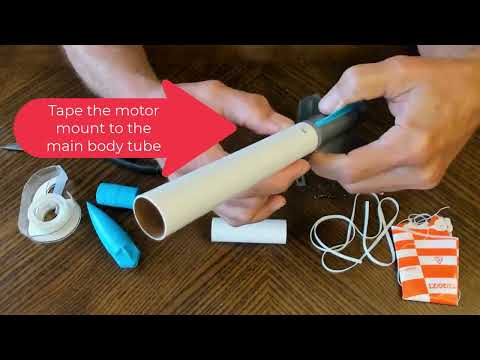
- Build your rocket with a payload bay measuring at least 22 mm by 64 mm. Ensure your board fits snugly and completely within the bay. Drill a small (~2 mm) vent hole in the payload bay so the altitude sensor can measure external barometric pressure accurately. Make sure the payload tube fits securely on the coupler to prevent it from coming loose during flight. Use cellophane tape to tighten the fit. Watch this video on how to build an Estes Cosmic Cargo Rocket and fit the RocketBoard into the payload bay.
- Turn on your RocketBoard and wait for the yellow LED to blink.
- Enter your board’s five-digit ID (upper left).
- Click the connect button (upper left).
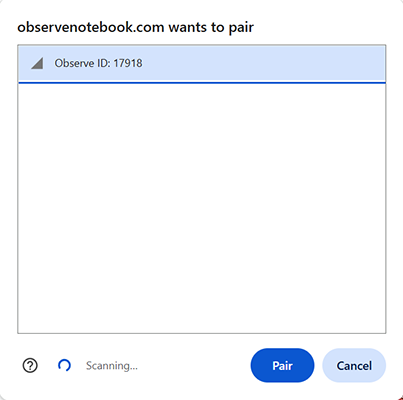
- Select your board’s Observe ID in the pop-up window, and click the blue “Pair” button.
- The Status (upper center) will change to Ready when paired.
- After each action, the board powers off. You must turn on and reconnect for all actions except collecting data.
- The prelaunch recording time determines how many seconds of data are captured before the launch acceleration trigger is detected.
-
Select each data collection parameter:
-
sec (maximum duration is 60 s)
-
m/s²
-
sec
-
-
- After saving, the Status will change to RocketBoard set up! and then to Disconnected.

- Review all of the NAR Model Rocket Safety Code for model rocket launches and watch this safety video from Estes Rocket Education.
- The RocketBoard weighs 11 grams. Choose a motor with enough thrust to safely lift your rocket with this added mass to a reasonable height. If you are unsure which motor to use, begin with an A8-3 motor. As you gain experience, try a B-class motor before moving on to a C-class motor.
- Prepare the rocket for launch and place it securely on the launch pad rail.
- Turn on the RocketBoard. The yellow status LED will begin blinking.
-
Insert the RocketBoard into the payload bay as shown:
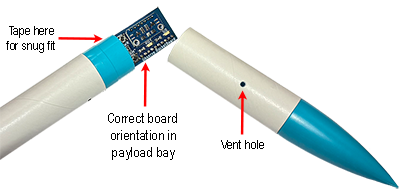 Ensure the board is inserted in the correct orientation, with the USB port pointing down toward the ground.
- When the rocket and board are in position for launch, press the ARM button. The board will calibrate based on its launch orientation. Do not move the board or the rocket during or immediately after calibration.
- The board is now activated and monitoring for liftoff.
- Carefully proceed with launch, following all guidelines in the NAR Model Rocket Safety Code.
- When the rocket is recovered, remove the board from the payload bay. If the recording was successful, the red LED will blink. It is now safe to turn the board off. The data will be retained.

- Connect to your board. Available data logs will appear in the dropdown menu. If no logs are stored, it will display ‘None.’
- Select the data log to download into the Desmos table:
- Click the button to begin. The Status will update to Downloading.
-
Choose your worksheet(s) below. Each opens in a new tab. Click ‘Make a copy’ in Google Docs to save your own version.
- RocketBoard Trajectory Analysis Worksheet — core overview & data analysis
- Estimating the Motor Impulse — math focus: impulse/area under curve
- Estimating the Acceleration due to Gravity — math focus: slope & rates of change
- Modeling Rocket Position Data — math focus: modeling descent & drag
- Click the button to copy your Desmos graph to the clipboard, then paste it into your worksheet.
- Click to save the current log as a .csv file with columns of time, position, velocity, acceleration. This file type may be imported into many analysis applications or reloaded into this page.
- Click to load a previously saved log.
- Your RocketBoard stores up to 10 data sets. Clearing memory permanently deletes all data.
- Pair the RocketBoard with your computer.
- Click . The Status will display Memory cleared!
- Your RocketBoard's current firmware version is: Check the table of contents for the latest firmware version and the download utility.
- Launch again using a motor with different thrust and compare your results. Be careful using a C motor on windy days, you may lose your rocket!
- To simulate launches and determine the best RocketBoard settings, download OpenRocket and the Estes Cosmic Cargo model file. Use this model to predict your rocket’s trajectory with different types of Estes motors.
- Example trajectory data: A8_motor_73g.csv . Use the Import .csv log button above to load this file into Desmos.
- Vernier Graphical Analysis is a great free tool for exploring your rocket data. The software allows you to import your data as a comma-delimited .csv file. Use the button above to export your rocket data from this page, and then download Graphical Analysis to further analyze your data.