What You Will Do:
- Learn how to connect and control the MotionCart using this web page and your computer's Bluetooth.
- Use Google Chrome or Microsoft Edge. Firefox and Safari do not support Bluetooth.
- Practice collecting motion and light intensity data.
- Practice using the graph controls to view, capture, export, import, and clear data.
- Before first use, plug your MotionCart into a USB-C charger and charge it for at least one hour.
- Press the red button on top of the cart. The blue LED will blink, showing that the cart is ready to connect. The Status in the top bar will show Disconnected.
-
Place your cart close to your computer and click Connect Cart. In a classroom with many carts, several MotionCart IDs may appear in the pop-up. Select the cart with the most bars in the signal strength bar gaph. This is usually the cart closest to your computer. Click Pair.
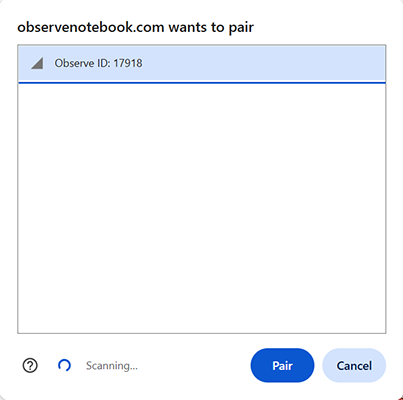
- If you selected the correct cart, the blue LED will turn solid and Status will change to Measuring. If the LED keeps blinking, click Disconnect, move the cart closer to your computer, and try again. Once connected, write down your MotionCart number for future use.
- The battery icon in the top bar shows the cart's charge level. Hover over the icon to see the percentage. If the battery is low, the icon will warn you to charge the cart. If the battery drains completely, the cart will not turn on until it has been recharged.
- Keep your MotionCart charged, especially before storing it for several months.
- The cart can be used while charging. To monitor charging on screen, connect the cart to Bluetooth first, then plug it into a USB-C charger. After a few seconds, the Status will change to Charging. When the USB cable is unplugged, the status returns to Measuring.
- Test the cart direction. Roll the cart to the right, toward the positive side of the number line. The dog should also move to the right. If the dog moves in the opposite direction, click Change Sign to reverse the direction. This setting is saved automatically.
- Place your cart at a starting position on your table and click Zero Position. This sets the current location as zero. Position is displayed in centimeters: positive to the right and negative to the left. Roll the cart back and forth to confirm that the dog on screen matches the cart's motion.
- Click Start Collection to arm the cart. The button will read Waiting for Motion… until you actually roll the cart — recording of position (S), velocity (V), light intensity (I), and time (T) begins automatically the instant real motion is detected, so t = 0 lines up with the moment you release the cart. Watch the Desmos graph. Your position and velocity data will appear in real time as you roll the cart. Collection stops automatically when it reaches the end of the graph's time range, or you can click Stop Collection to stop early.
- Your cart has a light sensor on its front face, just below the USB-C port. The current reading is displayed in the top bar as Light in lux (lx). Notice how the sky and ground in the simulation respond to the ambient light level. Bright light produces a sunny scene, while dim light brings out stars and headlights. During collection, light intensity is recorded in the I column of the data table alongside position, velocity, and time.
-
After collecting data, use these graph controls:
- Zoom to Data - fits the graph to all visible data columns.
- Capture Graph - copies the graph as an image to your clipboard.
- Export Data - downloads position, velocity, light intensity, and time data as a CSV file.
- Import Data - loads a saved CSV file back into the graph.
- Clear Graph - removes all data from the table and resets the graph.
- The collection duration matches the Desmos x-axis range. For example, if the x-axis runs from 0 to 20 seconds, the cart will collect data for 20 seconds. Durations are rounded down to a whole second, so an x-axis that ends at 15.7 collects for 15 seconds. To change the duration, click the wrench in Desmos, uncheck Lock Viewport, then hold Shift and drag along the x-axis to set the range you want.
- To turn off your cart, press and hold the red button until the blue LED turns off, about 2 seconds.
- Make sure the MotionCart's battery is fully charged before use.
- Verify that your computer's Bluetooth is on and functioning.
- Press the cart's red button and wait for the blue LED to blink before clicking Connect Cart.
- If your cart does not appear in the pairing list, make sure it is powered on and nearby.
- Firefox and Safari do not support Web Bluetooth. For best results, use Google Chrome or Microsoft Edge.
- Check your network policy, it may be blocking Bluetooth.
- Now that you are comfortable with the MotionCart controls, you are ready to use them in the MotionCart activities. Each activity will have its own instruction and will also link back here if you need to review these instructions.
- Click the Hide Directions button in the upper right to give yourself more space. Practice connecting, zeroing, rolling, and collecting data. Try starting and stopping a collection, then use Zoom to Data, Capture Graph, and Clear Graph until you are comfortable with each control.